

How to Check Your Public IP Address (and Understand the Results)
How to Check Your Public IP Address (and Understand the Results)
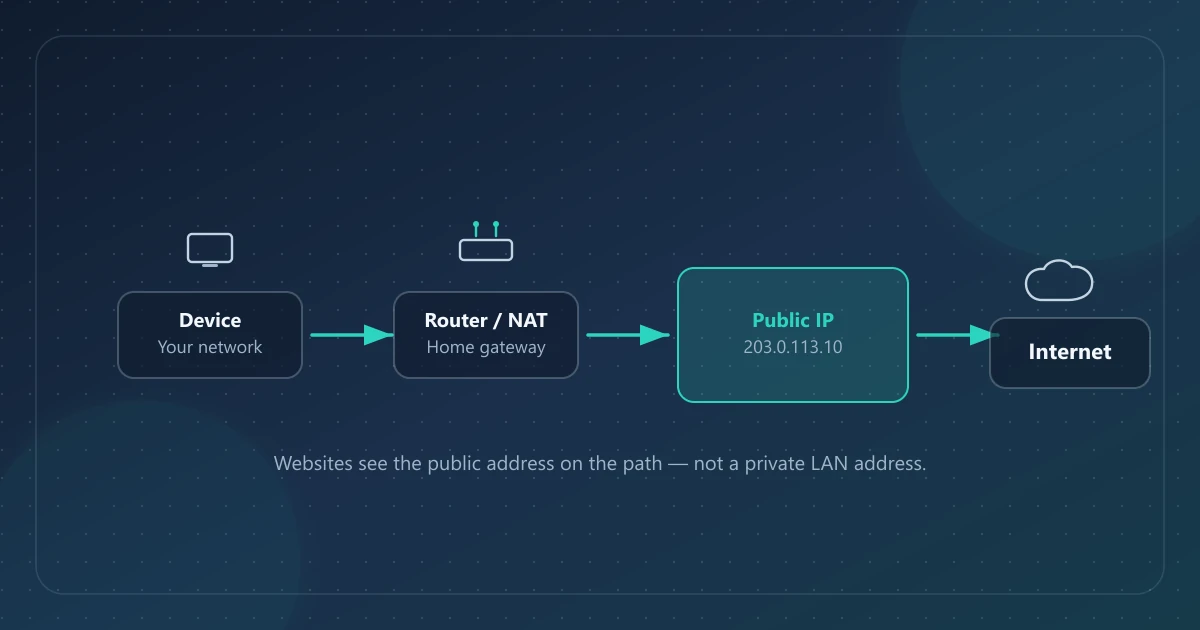
Your public IP address is the internet-facing source address that reaches a website or other online service. Checking it answers “what is my IP?” in practical terms: which address that service associates with the request you just made.
This article explains how to check that address, how to read the common fields next to it, and how to avoid mixing up network data with browser or device signals.
What “public IP” means in one sentence
A public IP address normally comes from globally allocated address space and can be used for routing across the public internet. Your ISP may assign one to a home or office gateway, while hosting and VPN providers use addresses from their own networks. Firewalls, provider policies, and routing still determine whether unsolicited inbound traffic can reach a device.
Many home networks use Network Address and Port Translation (commonly called NAT) so several devices can share one public IPv4 address. That is why a “what is my IP” page often shows a different address from the private address in your Wi‑Fi settings.
Quick ways to check your public IP
1. Use a dedicated IP lookup page (recommended for beginners)
Visit a public IP checker such as IPinfoLabs. On load, a well-built tool shows:
- The public IP used for that request—IPv4 or IPv6, depending on the connection path
- ISP / organization associated with that address
- An approximate location derived from IP geolocation databases
- Optional local browser and device context from your own browser session
You do not need an account to see your public IP. Treat any location as an estimate, not GPS.
2. Use a terminal (useful for developers)
On systems with curl, you can ask the third-party ipify API to echo the source address it sees:
curl https://api.ipify.org
Or, for JSON:
curl https://api.ipify.org?format=json
Terminal methods typically return only the IP string. They do not explain ISP, location, or whether you are on IPv4 versus IPv6 unless you choose a service that does.
3. Check your router’s WAN / internet status page
Your router’s administration UI often lists a WAN (internet) IP. It may be a public IPv4 address, but an ISP using carrier-grade NAT (CGNAT) can assign the router an address from RFC 6598 Shared Address Space, 100.64.0.0/10. That range is neither ordinary public space nor RFC 1918 private space; the ISP translates it to a public address further upstream.
When the router WAN value and a checker disagree, the checker reports the source address that reached that checker. CGNAT, a VPN, an application proxy, or a different IPv4/IPv6 path can explain the difference.
How to read an IP information dashboard
A good dashboard separates three layers of information. Mixing them up is the most common source of confusion.
Layer A — Public IP (network identity)
This is the source address that reaches the service, after any NAT, VPN, or proxy on the path. It may change when:
- Your ISP rotates dynamic addresses
- You reconnect after a long offline period
- You switch networks (home Wi‑Fi → mobile data → office)
- You connect or disconnect a VPN or proxy
IPv4 uses four decimal octets, as in 203.0.113.10—an address from TEST-NET-3 reserved for documentation by RFC 5737, not an ordinary public endpoint. IPv6 uses colon-separated hexadecimal groups. Dual-stack networks can use either protocol depending on the destination and connection.
Layer B — ISP and approximate IP location (IP-derived)
Lookup providers map IP blocks to organization and geography using registration and measurement data—not your phone’s GPS.
Typical fields:
| Field | What it usually means | Common caveat |
|---|---|---|
| ISP / organization | The network name the data provider associates with the address | May show a parent company, carrier, hosting provider, or VPN operator. See what an ISP is |
| Country | Country associated with the IP block | Usually more reliable than city |
| Region / city | Finer estimate | Often maps to an ISP PoP or city hub, not your street |
| Coordinates (when shown) | Database estimate | Not a live GPS fix |
IPinfoLabs labels location as approximate because geolocation is an estimate. Country, region, city, and coordinates can all be wrong; finer-grained results deserve more caution. Results vary with the database, ISP routing, mobile gateways, and VPN or proxy exits. See what an IP address can and cannot reveal and how IP geolocation works.
Layer C — Browser and device information (local, not from the remote IP)
Many dashboards also show browser name, operating system, platform, browser timezone, and user agent. On IPinfoLabs, those fields come from your local browser session.
Important distinction:
- If you look up someone else’s public IP, network and approximate location refer to that address.
- Browser and device fields still describe your client—not the remote host.
That separation is intentional. An IP lookup cannot magically invent another person’s browser string.
How to verify a VPN or proxy with your public IP
- Note the address shown before connecting the VPN or proxy.
- Connect, then refresh the checker.
- Check whether the address—and often the apparent location—changed to the exit network.
- Disconnect and refresh again to confirm you returned to your ISP address.
If the IP does not change, common causes include:
- The VPN failed to connect or crashed
- Split tunneling is sending browser traffic outside the tunnel
- You are checking a different device or browser profile
- A browser extension or proxy setting is incomplete
A changed result confirms that this checker request used a different source address. It does not prove every application is tunneled or that the connection is anonymous.
IPv4 vs IPv6 when checking “my IP”
Some networks expose both. Others expose only one path to a given website.
- If a page shows IPv4, that request reached the service over IPv4.
- If it shows IPv6, that request reached the service over IPv6.
- Dual-stack users may see different answers on different tools depending on which protocol the tool prefers.
When troubleshooting, compare results from more than one checker and note which protocol each returned. For formats, dual-stack connections, and why a tool might show only one protocol, read IPv4 vs IPv6.
What a public IP check is good for
Practical, legitimate uses include:
- Confirming which address a remote support engineer should expect
- Checking whether a VPN exit is active
- Documenting network context for a bug report (with care not to overshare)
- Learning whether you are on IPv4, IPv6, or both
- Understanding approximate regional routing context
For up to 50 addresses, Bulk Lookup can return country, city, ISP, ASN information, and estimated coordinates. Those fields describe address and network records; they do not establish a street address or a person’s identity.
What a public IP check is not
A public IP check does not:
- Reveal your exact street address or apartment number
- Identify which household member is online
- Expose passwords, account contents, or browsing history by itself
- Prove device ownership
- Replace a security audit or malware scan
For the fuller privacy picture, read What an IP Address Can and Cannot Reveal. If you are seeing a 192.168.x.x address in device settings and wondering why a website shows something else, read Public vs Private IP Addresses. To interpret ISP and organization labels, see What Is an ISP?.
A simple checklist before you share an IP screenshot
Sharing an IP report can help support teams. Before you post one publicly:
- Redact anything you do not need to share
- Remember that ISP and city estimates travel with the IP
- Prefer ticket systems over public forums when the issue is sensitive
- Do not treat an IP report as proof of someone’s physical location
FAQ
Is “what is my IP” the same as my Wi‑Fi IP?
Usually no. Wi‑Fi settings often show a private LAN address. “What is my IP” pages show the public address beyond your router (unless you are on an unusual setup). Details: public vs private IP.
Why did my public IP change overnight?
Many consumer ISPs assign dynamic addresses that can change after reconnects, lease renewals, or network maintenance. A VPN session ending can also restore a previous ISP IP.
Can I look up any IP address?
IPinfoLabs is intended for globally assigned IPv4 and IPv6 addresses. Private, local, reserved, or otherwise unsupported inputs may be rejected by the site or its upstream data provider. A lookup supplies network context; it does not grant access to a device.
Does checking my IP store a history on IPinfoLabs?
IPinfoLabs does not create user accounts or persist lookup history in an application database. To produce a result, the address being checked is sent through IPinfoLabs’ API route to the external lookup provider, ip-api.com. Report files are generated in the browser. See the Privacy Policy for the site’s current data-flow description.
References
- RFC 1918 — Address Allocation for Private Internets
- RFC 6598 — IANA-Reserved IPv4 Prefix for Shared Address Space
- RFC 5737 — IPv4 Address Blocks Reserved for Documentation
- IANA IPv4 Special-Purpose Address Registry
- ipify — public IP address API
- IPinfoLabs About — how the product presents approximate location and client context